Using Android Samples
Overview
Section titled “Overview”This section describes how to build and deploy the samples on an Android device, and how to modify the licenses used by the samples, which are for the moment hardcoded in the application’s source code.
Operating Systems
Section titled “Operating Systems”Android: armeabi-v7a, arm64-v8a, x86, x86_64
Prerequisites
Section titled “Prerequisites”Host setup
Section titled “Host setup”To build Android applications using the IRISOCR™ SDK, make sure that the following elements are installed on the host computer:
-
Android SDK
- Our SDK is compatible with Android 4.2.2 (API 17) or higher. At least one API with level equal or higher than 17 must be installed.
- However, the SmartCapture sample application uses the Android camera2 interface, therefore requires at least API level 23 (Android 6.0). This is a prerequisite of the sample itself, not of the iDRS™ SDK.
-
Android NDK
-
As the iDRS™ consists in native libraries, you need to have the Android NDK (Native Development Kit) available on your host computer.
Just for information, the iDRS™ libraries are compiled using Android NDK revision 17c. -
Command ndk-build must be accessible in the system PATH
-
-
Android Studio
- The official IDE for Android development is Android Studio. Of course, alternatives do exist and may be used instead.
Target device
Section titled “Target device”The samples have been validated with the following devices:
- Samsung galaxy S10
- Samsung galaxy S8+
Considerations for C++ library support
Section titled “Considerations for C++ library support”As detailed in Android guidelines (see https://developer.android.com/ndk/guides/cpp-support.html), native libraries of an Android application should link against shared C++ runtime, and all libraries of the application should use the same runtime.
The iDRS™ uses libc++ shared runtime (c++_shared) as per Android recommendations, so your application should do the same.
How to run a sample with Android Studio
Section titled “How to run a sample with Android Studio”Import the project
Section titled “Import the project”The sample applications sources are located in the folder <iDRS_toolkit>/samples/<sample_name>, where <iDRS_toolkit> is the path to the toolkit root folder and <sample_name> the sample name (e.g. SmartCapture).
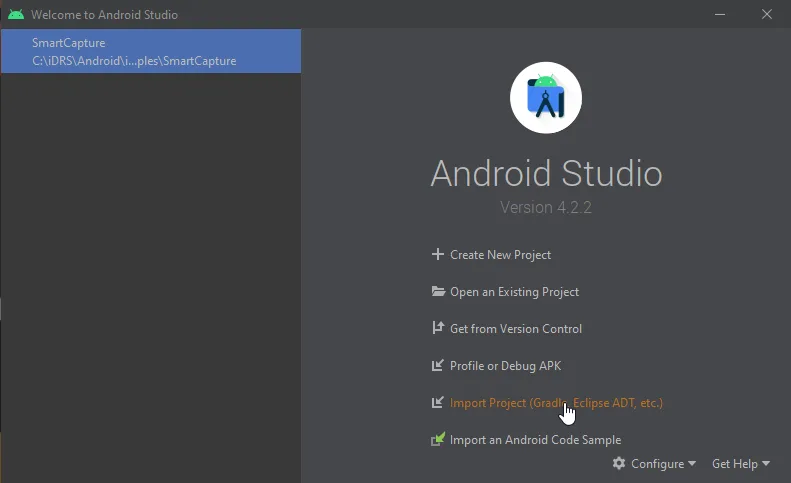
To load a project with Android Studio, use the Import project feature as below:
A dialog box opens. Select the desired project in the samples folder and click OK:
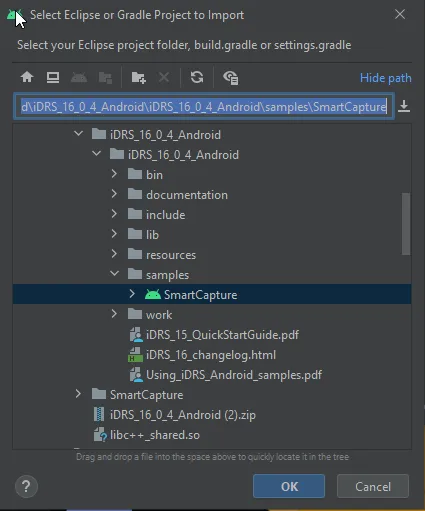
The sample application project opens.
Build the application
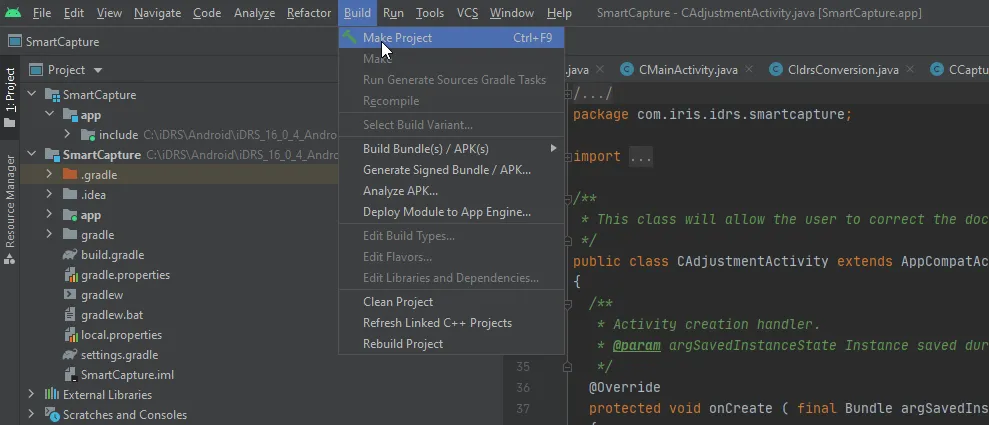
Section titled “Build the application”To build the application, go to menu Build and select Make Project (or Rebuild Project in order to rebuild everything):
Start the application from Android Studio
Section titled “Start the application from Android Studio”To launch the application from Android Studio, select a running device from the drop down list:

Then simply hit Run ‘app’ from the Run menu.

The application is then launched on the selected device or emulator.
Notes on the sample applications
Section titled “Notes on the sample applications”Resources verification at startup
Section titled “Resources verification at startup”The SDK uses several external resource files when performing character recognition. These files are embedded in the sample’s APK file as assets, which mean that they are not extracted by the Android system when it installs the sample application.
Therefore, when a sample application is started, it checks first if the resources are available on the device at the location pointed by Context.getExternalFilesDir("resources").
If the resources files are not present at that path, the sample automatically extracts them from its assets and copies them at that location, so that the SDK can access them easily later on. If the resources files are already present, no operation is performed and the sample continues its execution.
Be aware that this operation can take up to several seconds.
Of course, this is not the recommended way to ship the resources with your application: Google store has a maximum size limit of 50 mo for an .apk file, and with the resources embedded the sample apks are over that threshold.
The reason why all resources are included in the sample APK is to allow “1-click deployment” of the samples, so that you can easily get started with iDRS testing.
For more information on how to properly manage resources in an Android application, refer to the Android online documentation at http://developer.android.com/google/play/expansion-files.html.
Modifying the hardcoded licenses
Section titled “Modifying the hardcoded licenses”The licenses are hardcoded in the native header of the source files:
- SmartCapture:
SmartCapture/app/src/main/jni/idrs_licenses.h
#define IDRS_LICENSE_IMAGE_FILE "IDRS_TRIAL_IMAGE_FILE_IRIS_*****"
#define IDRS_LICENSE_PREPRO "IDRS_TRIAL_PREPRO_IRIS_*****"
#define IDRS_LICENSE_OCR "IDRS_TRIAL_OCR_IRIS_*****"
To update the licenses, simply modify the define values with the new licenses; then rebuild the application to update it.
Recognition languages selection
Section titled “Recognition languages selection”The languages available for recognition in the samples are hardcoded in their source code. Please note that this limitation does not apply to the iDRS™ toolkit: at the moment, the toolkit is able to recognize all the languages available on desktop masters.
The Language enum exposes all the available languages for the toolkit, and is defined in the iDRS header file <iDRS_toolkit>/include/Language.h:
enum Language{ /** * \brief English (American) */ English = 0, /** * \brief German */ German = 1, /** * \brief French */ French = 2, /** * \brief Spanish */ Spanish = 3, […]SmartCapture
Section titled “SmartCapture”In the SmartCapture sample, a selection screen allows you to modify the recognition language; for the sake of simplifying the layout, only a subset of languages is exposed to the application user:
- English
- French
- German
- Spanish
- Italian
- Dutch
- Japanese
- Simplified Chinese
- Traditional Chinese
- Korean
This set can be modified the following way:
-
Edit the pop-up menu displaying the list of languages defined in
<SmartCapture>/app/src/main/res/layout/popup_ocr_language.xmlto add or remove languages as you wish:<RadioGroupandroid:layout_width="wrap_content"android:layout_height="wrap_content"android:orientation="vertical"><RadioButton[...]android:id="@+id/English"android:text="English"android:tag="0"/><RadioButton[...]android:id="@+id/German"android:text="German"android:tag="1"/><RadioButton[...]android:id="@+id/French"android:text="French"android:tag="2"/>[...]</RadioGroup>The "tag" value is provided to the iDRS™ directly as an IDRS_LANGUAGE enum value, thus it needs to correspond (0 for English, 1 for German, etc.) -
Recompile and redeploy the application.
Image capture feature
Section titled “Image capture feature”The sample application SmartCapture is a complete application that can convert images taken from the camera or from the gallery to a wide range of document formats, including PDF and DOCX.
The application workflow is split in several distinct steps, so that you can understand easily the various use cases the iDRS™ technology can address.
One of the most interesting feature illustrated is the image capture step: the sample application can automatically select the best frame from the video stream of the device’s camera by using the hardware status information and the iDRS™ mobile capture technology.
The following elements are monitored:
- Document exposure: does the scene receive enough light?
- Camera focus: is the camera lens focused?
- Device stability: isn’t the device shaking?
- Document corners: have the corners of the document been detected?
- Size of target area (document): is the document large enough compared to the picture size?
- OCR quality: is the document’s quality for running OCR good enough?
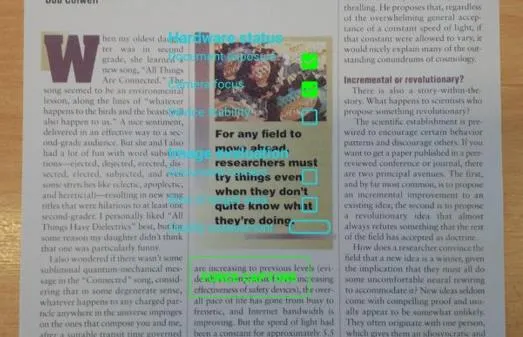
In the SmartCapture sample application, those information are displayed on the capture view. However, you may want to remove some or all of the indicators for your own application…